
Run#
Before being able to run JADE, the instructions contained in Installation and Configure JADE must be followed.
Configure the run#
Once the software is installed and properly configured the user can select through the GUI which cases to run.
To open the run configuration GUI the user can move to the JADE root directory and run from the command line:
jade --rungui
or
python -m jade --rungui
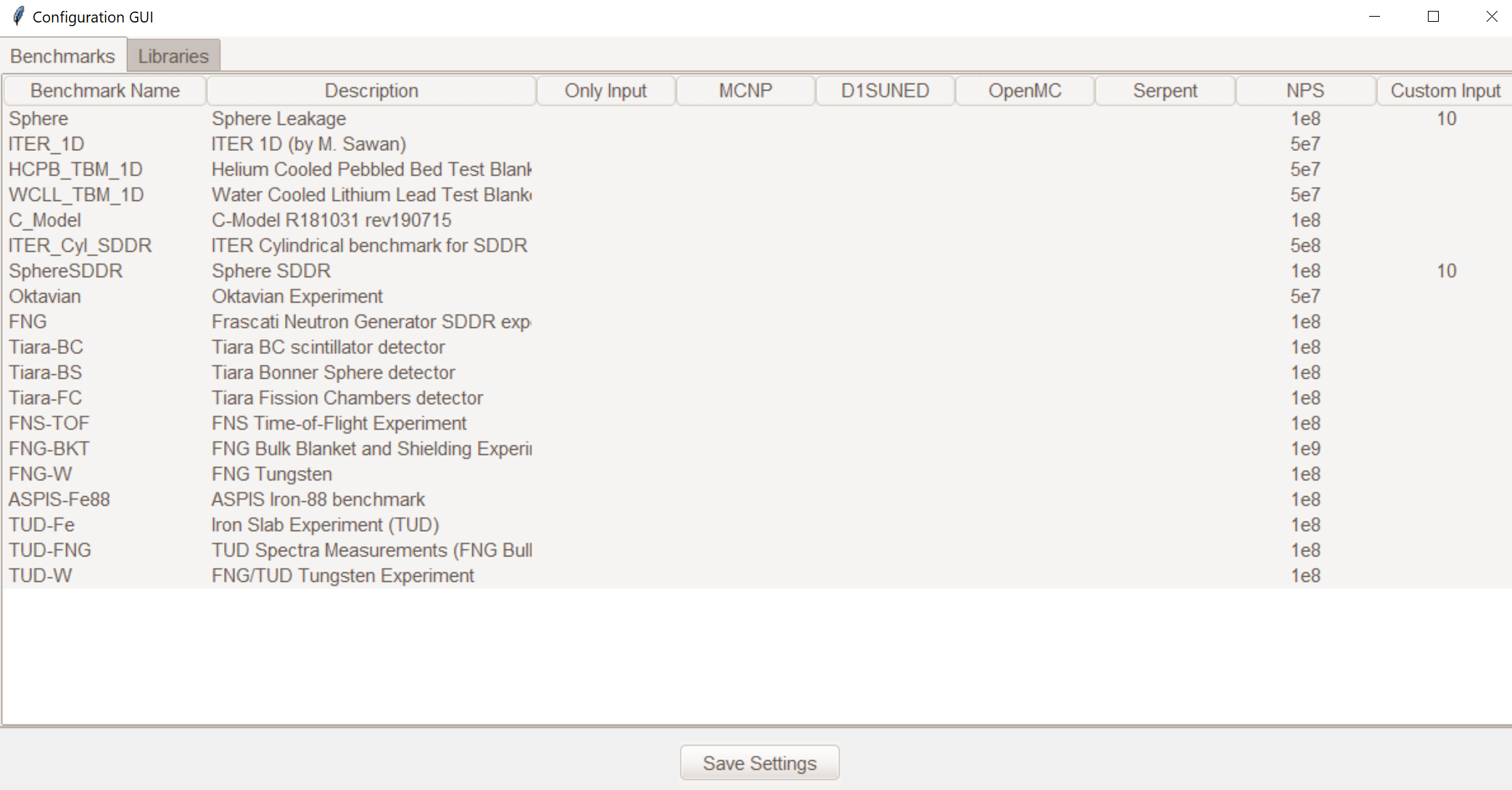
A window like the one below should open:
Benchmark selection TAB#
In this tab the user can select wich benchmarks to run and with which transport codes. The following is a brief description of the different columns contents/option:
- Benchmark Name
Name of the benchmark. This is the string used in all folders, config files and input files related to that benchmark.folder containing input files for all codes.
- Description
This is the extended name of the benchmark, this name will appear in specific outputs of the post-processing.
- OnlyInput
When this field is set to
Truethe benchmark input is only generated but not run. This can be useful when the user wants to run the benchmark on a different hardware with respect to the one where JADE is being used. The input will be generated for each selected code.See also
- MCNP
Runs (or only generate) the benchmark input for MCNP.
- Serpent
Runs (or only generate) the benchmark input for Serpent.
- OpenMC
Runs (or only generate) the benchmark input for OpenMC.
- D1S
Runs (or only generate) the benchmark input for D1SUNED.
- NPS cut-off
Number of histories to be simulated. Default values should provide sufficient statistical convergence but users are free to increase them.
- Custom input
This columns allows to provide custom inputs to the different benchmarks. For the moment, this is used only in the Sphere Leakage and Sphere SDDR benchmarks where, if a number n is specified, this will limit the test to the first n isotope and material simulations (useful for testing).
Each benchmark that has at least one code (or the Only Input flag) selected will appear in the “Libraries” tab:

Libraries selection TAB#
Users need to select at least one library to be used for each benchmark or the run will not be performed for that benchmark.
Once also the libraries are selected the user can save the settings using the “Save Settings” button.
Important
The user is free to save the file to whatever location in case multiple settings need to
be prepared. Nevertheless, JADE will always look for the <root>/cfg/run_cfg.yml file
when the run is started. This is the file to be overridden and it is also the file that
is loaded when the run GUI is opened. That is, settings of the previous run remain saved.
Run the benchmarks#
To run the selected benchmarks with the indicated transport code-library couples the user can simply run in the root directory from the command line:
jade --run
or
python -m jade --run
Continue executions#
In cases such as the Sphere Leakage benchmark, when running on HPC, it may preferable to run sequentially the different benchmark runs using a single job instead of submitting a different one for each benchmark. To handle this, JADE provides a continue run option that allows to identify all benchmarks that have been generated but not run successfully run them in sequence.
to resume simulations the user can run from the command line:
jade --cnt
or
python -m jade --cnt
For MCNP and D1S, the continue run will also automatically delete the .o output file so that the simulation can be restarted without errors.
Tip
The continue run is particularly useful when used in combination with the Only Input option.